Showing posts with label Apttus X-Author. Show all posts

Wednesday, January 9, 2019

Apttus CPQ : X-Author Template - Print Format Permissions


                                                         All rights of Content and Images are reserved to APTTUS Corporation
Hi All,

Lets discuss about the print formats permission for different profiles.

USE CASE:

For some user, we want such restrictions that they should be able to generate quote is pdf only so that further alteration will not be possible (like word doc).

See the below image:
By Clicking on Preview Button:


You can see the different output formats here, user can select any of these. But we want to restrict user with .pdf only.


How to do that ?

There are few steps to follow:

1. Go To All Tabs
2. Search and Open tab 'Proposal Document Output Formats'
3. Select the Profile from drop down for which you want to restrict the permissions to pdf only.


4. Click on Edit Button.
5. You will see the below screen:


Proposal Type: These are the record type of proposal, for which record type we need to put restrictions.
Choose the PDF in radio buttons for the record type.
Allow Watermark : You can place a watermark. There is default watermark which appear on Previewed Proposal, not on Generated Proposal.

NOTE: Generate button have this 'Watermark' optional. Preview button do not give any option o select or deselect this Preview check box. If you 'Allow Watermark' in above setting, it will put watermark text by default on previewed file.

Now, lets see the these changes, Click on Preview Button.


You can see that by default we got PDF selected. All other format radio buttons are in disable mode, user can not select any of them.

Just select the template and generate the preview.

If you are facing any issue in this setup, just reach out to me radhe636@gmail.com or +91 8574715370

Thanks


Apttus CPQ: X-Author Contract (for Word)


 All rights of Content and Images are reserved to APTTUS Corporation.

Hi All,
                                                 
Today, let’s discuss about X-Author Contract (for Windows OS).
X-Author Contract for word is a MS Word Plugin which is used to design dynamic templates for your Quotes or for your contracts.
To Setup this plugin, just download from Apttus Portal.
Below are the steps:
Login, Choose Apttus Install Center


Select the below tool and download.


Install it in your machine. 

Now, Attach this plugin in your MS Word.


Go To Options -> Add Ins


Select the X-Author Contracts, click ok.

Now, wait for few seconds, you will see 2 new tabs in to ribbon in your MS Word.


Make a connection with Salesforce
Connect to Salesforce, see image


Now you are logged in successfully.

If you want to edit the existing template, click on Check out, but I do not have existing, I am going to create New template.


Click on ‘New’


Fill the details


Click ‘Create New’
On Blank Page, Create Some Structure of your Template. Put logos, tables, Labels.


Now, insert the fields from Proposal which will render dynamically at the time of proposal 


generation.


You will see Quote/Proposal fields like below:


Select the field and insert in proper cell against your Label


Now, for Line items, Select Insert Field from Menu, the select the Line item(see below) and select the multiple field with CTRL+Click.
Mark Insert as a table.


Click Finish.


All Line Columns will be inserted.


Now click on Check-In


Activate and Click on Check In.

Now we are done here with template Creation.

Go to SFDC, Search for 'Template' tab and open.

Put Your Proposal record type name in ‘Agreement Type’ field.


Your file is here below in Attachment.


Now Go to Proposal and try to Preview this.


Select the format and Listed file, click on Generate.


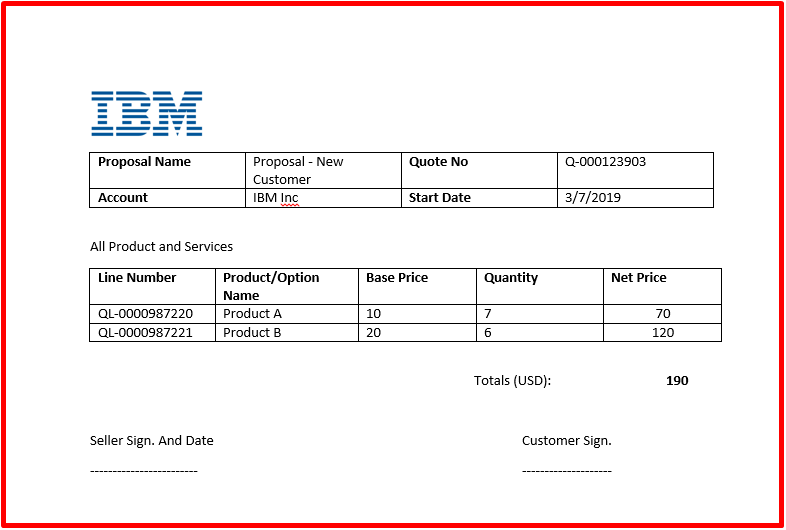
And we are done. You will get the below result. J


If you are facing any issue in this setup, just reach out to me radhe636@gmail.com or +91 8574715370