Sunday, January 28, 2018

Apttus CPQ: Categories Setup

All rights of contents and logo are reserved to APTTUS Corporation.
Hi Friends,

In this blog we are going to explore that how we ca setup the Categories and a hierarchy level under offering Category.

Categories - Categories are the main part of your CPQ. It defines the UI representation of your catalog where you showcase the products/services for sell.

For this setup, You should have the list of priced products in system, you can find the way to setup product and way to pricing of product here.

Now come to categories.

Steps to define:
Navigate to Category Tab.

Create New Category - Type offering.
Associate the Price List with this offering Category so that it will be visible on catalog when you will create Quote by taking this Price List

 Click On Hierarchy Manager button (put on layout if not there), and open the following page.
On this page you can create the subcategories as per your requirements.


Once you created the subcategories, You can add the products under these subcategories now.
See the following Images:


You can see the Added products on "Remove" tab. These products can be bundles or standalone. 


Now Save this and run the "Category Maintenance" job to commit these configurations.


Now its done!
Time for Testing - Create a quote by taking Price List which is associated to Offering Category.
You will see that all products you added under categories and subcategories/hierarchy are available for sell on your catalog. Just Pick the products and move to cart and finalize the quote.


This was the process to setup the categories in Apttus.


In Next Post We will see: How To define Complex Pricing in Apttus

Thanks For Reading
If you have any queries or suggestions, reach me on radhe636@gmail.com/+918574715370.

Apttus CPQ: Pricing Setup for Products


*All rights of contents and logo are reserved to APTTUS Corporation.

Hi Friends,

In this blog we are going to learn how to setup the pricing for a product.
Before this, please go through last post How to Setup Product in Apttus CPQ


Once you setup the product, for setting up the pricing here are the steps:
1. Create Price List
2. Create Price List Item for Product
3. Define the List Price, Charge Type, Price Type, Effective Dates etc.
4. If you are setting the Billing, Taxation and Revenue process for products, you need to fill these details as well.
5. Make sure, PLI is Active, if it is not active, your product will not be visible on catalog page.

Ok, Let's start...

Click on Price List Tab and create new Price List and fill the following details.


Now, Open the Product for which you want to define the price.

Open Product
Click on New Price List Item and fill the details - If you are not able to see this related list, put this on layout.


Fill the following details - for CPQ prospective, this is the minimum detail you need to fill. For other features like Billing RevRec, Taxation, I will post details later in separate blog.


Once you fill all these details Save this.

Lets have a look of these fields:
Price List - This is master Price List which will contains many Price List Items for Different Products. This Price List defines the visibility of your categories/offerings in catalog page once this is associated to any Offering category.
This is like the Price Book in salesforce.

Product: This is product or service for which you are defining the price by creating this price list item. This product may be Standalone, Bundle or Option.

Charge Type: this is type of your charge for system understanding that what kind of charge you are imposing on a customer for this product or service.
This may be your Subscription Fee, Installation Fee or Standard Price.

Price Type: Generally there are 3 type of price, Recurring, Once Time and Usage
Recurring: If you are selling some service which payment is to be made every after certain period, like you are selling some Subscriptions for 1 year for  which you are charging a certain amount ($14)  every month, so this will be your recurring charge which will occur till next 12 months.

One Time: One time chargeable. Full Payment at time on purchase.

Usage: Pay for what you are consuming - Bill will be generating as per the user consumption.

Frequency: Its for Recurring: Monthly, Quarterly or Yearly basis.

Price Method: Per Unit , Flat Price, Tier Price(For Usage Price Type)

List Price: This is the price for your product that will be available on catalog.

Effective and Expiration Dates: What is lifetime of this Price.

Charge Type Criteria: If you want to apply this price conditionally, you can define the charge type criteria as well. For Example, if you want to apply this price only if we are placing New Order, we can put the conditions like this:


After doing all this stuff: Execute the Maintenance jobs for Pricing.


Now your pricing is ready for Product.

In Next Post We will see: How To define the Categories In Apttus

Thanks For Reading
If you have any queries or suggestions, reach me on radhe636@gmail.com/+918574715370.


Thursday, June 29, 2017

Apttus CPQ: Product Setup


All rights of contents and logo are reserved to APTTUS Corporation.

Hi All,
A Product in Apttus terminology is a product or service that can be set up to be sold on its own as a standalone product or options of other products


Products or services are set up as standalone, bundle, or options of other products.

Standalone - This is an individual product that can be sold on its own.
Bundle - Any product that has other products (options or bundles) associated with it.
Options - This is a product that can be sold with a bundle product only via an option group.

Steps:

  • Go To CPQ Console Tab
  • Click on Add Products Link


  • Type a mandatory Product Name and type a Product Code. The Product Code can be an internal code or a product number to identify the product within your organization.
  • Type a Product Description and select a Product Family.


  • Enter the following product information, as required.


Option
Must Configure: Indicates that the end user must configure a product to add options or attributes or both. The Configure button is the only option available on the Catalog page. When you select Must Configure, you must also select either Has OptionsHas Attributes, or both. Clearing the check box allows an end user both the options; either add the product to cart directly or configure the product with attributes or options, or both.
Has Attributes: Indicates that the product has attributes associated to it. During the quote creation process, the end user can enter values for those attributes. Using the product attributes administration tool.
Has Options: Indicates a product as a bundle that has options (bundles/options). Using the bundle manager tool, option products can be associated with a bundle product.
Has Defaults: Indicates that when a product is added to the shopping cart, there are some other products that may get automatically added to the cart.
Configuration Type: Select one of the following type of the product:
            Standalone
            Bundle
            Option
This field is mandatory.
Uom: Select a unit of measurement.
Click Save

Product has been Created.

In similar way, you can create the Option Group/Options and Standalone products for this bundle.
Option Groups could be- Airtel Telecom Service, Airtel Broadband Service, Airtel Digital TV etc.

Next Blog : How To Define the pricing for these Product.


Saturday, December 31, 2016

Apttus CPQ: Post Installation Configuration

All rights of contents and logo are reserved to APTTUS Corporation.
Hello Friend,

Once you have installed all packages, you need to setup some configuration in custom settings.

1. Set Instance URL - Go to custom Setting -> Config System Properties -> Manage ->System Properties -> Edit ->Instance URL .


Set the url of current org and save.

Note: When you refresh the sandbox, the app copies all the data and components from the production instance to the sandbox instance. You need to change this url if working in sandbox.


In Next blog we will see How to Setup Product in Apttus


Apttus CPQ: How to Install Apttus CPQ Packages

All rights of contents and logo are reserved to APTTUS Corporation.
Hello friends,

In this blog, we are going to learn that how we can install the required CPQ packages form Apttus Install center.


Prerequisites


Before you can install Apttus CPQ module packages, you must ensure that Salesforce CRM Content is enabled in your org.

To enable Salesforce CRM Content


You must be logged into Salesforce.com.
  1. Go to Setup > Customize > Salesforce Files > Settings > Salesforce CRM Content and click Edit.
  2. Select the Enable Salesforce CRM Content check box.
  3. Click Save. Salesforce CRM Content is enabled.

You must have access of Apttus Community.

Now Start installing CPQ packages.


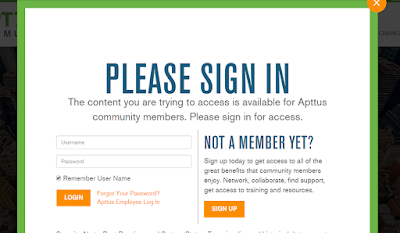
Sign in to Apttus Community


Navigate to Install Center - You will find all packages here.

Please install the packages in following order.


For example, I am selecting first package "Apttus Contract Management"
Click on 'Install now', following window will appear, select org.
Select org and provide password, and Install.

In this way you can install all required packages.

For more details watch this video:


Thanks you, please share your feedback.

Introduction: What is Apttus??

Basic Introduction to Apttus Company

At Apttus, the category-defining and leading Quote-to-Cash (QTC) software provider, we’re driving the vital business processes between a buyer’s interest and the realization of revenue.  Apttus’ offerings are fueled by the Apttus Intelligent Cloud, which maximizes the entire revenue operation by streamlining and improving business processes, aligning and driving revenue winning behaviors and recommending relevant, intelligent actions. No other enterprise software provider has ever used technology in this way, and as a result, Apttus is uniquely positioned to deliver successful customer outcomes, improving the realization of revenue from the top-down, while solving common business problems within the sales cycle.
The Apttus Intelligent Cloud powers all of Apttus’ Quote-to-Cash solutions, including Configure-Price-Quote (CPQ), Contract Management, E-Commerce, and Revenue Management. We combine these process-based applications with modern and innovative behavioral applications including promotions, sales compensation and rebates to align and drive revenue winning behaviors across all your sales channels.  All our applications can be further enhanced with machine learning to recommend relevant, intelligent actions making all your sales channels more effective and our conversational and intuitive user interfaces, make it easy to learn and use our applications.  Additionally, Apttus’ X-Author solution increases adoption of these tools across your organization by allowing Microsoft Word and Excel to function as user interfaces dramatically increasing the speed and efficiency of data input, manipulation and reporting and X-Author can be used to improve the adoption of CRM systems such as Salesforce and Microsoft Dynamics 365. Apttus Intelligent Cloud runs on the worlds’ most trusted and comprehensive cloud platforms, including Salesforce and Microsoft Azure making it easy and quick to implement, customize, support, maintain, scale, and grow.
Only Apttus offers complete automation of revenue operations from beginning to end, successfully transforming the Quote-to-Cash process for some of the largest and most complex businesses around the globe. As 600+ customers and 1 million+ users worldwide can attest, Apttus is the largest, most experienced and capable Quote-to-Cash solution provider, and has been committed to innovation and evolution throughout its long history.
With 1,200 employees, 20+ certified consulting partners and 500+ professional resources committed to your success, Apttus is your trusted business advisor for Quote-to-Cash business transformation.  Ready to join the world’s largest Quote-to-Cash community and get connected to leaders, achievers, and innovators in your field? Then it’s time to transform the way you drive revenue, engage with customers, and grow your business with Apttus.

Apttus is based in San Mateo, California, with 9 offices across the globe including Chicago, Montana, London, India, Japan and Australia.
Source: (http://apttus.com/company/about/)